Original chapter reference: Chapter 7: Undoing. The command options and documentation recipes below are fully transcribed from Git Notes for Professionals.
Section 7.1: Return to a previous commit
To jump back to a previous commit, first find the commit's hash using git log.
To temporarily jump back to that commit, detach your head with:
git checkout 789abcdThis places you at commit 789abcd. You can now make new commits on top of this old commit without affecting the branch your head is on. Any changes can be made into a proper branch using either branch or checkout -b.
To roll back to a previous commit while keeping the changes:
git reset --soft 789abcdTo roll back the last commit:
git reset --soft HEAD~To permanently discard any changes made after a specific commit, use:
git reset --hard 789abcdTo permanently discard any changes made after the last commit:
git reset --hard HEAD~Beware: While you can recover the discarded commits using reflog and reset, uncommitted changes cannot be recovered. Use git stash; git reset instead of git reset --hard to be safe.
Section 7.2: Undoing changes
Undo changes to a file or directory in the working copy.
git checkout -- file.txtUsed over all file paths, recursively from the current directory, it will undo all changes in the working copy.
git checkout -- .To only undo parts of the changes use --patch. You will be asked, for each change, if it should be undone or not.
git checkout --patch -- dirTo undo changes added to the index.
git reset --hardWithout the --hard flag this will do a soft reset.
With local commits that you have yet to push to a remote you can also do a soft reset. You can thus rework the files and then the commits.
git reset HEAD~2The above example would unwind your last two commits and return the files to your working copy. You could then make further changes and new commits.
Beware: All of these operations, apart from soft resets, will permanently delete your changes. For a safer option, use git stash -p or git stash, respectively. You can later undo with stash pop or delete forever with stash drop.
Section 7.3: Using reflog
If you screw up a rebase, one option to start again is to go back to the commit (pre rebase). You can do this using reflog (which has the history of everything you've done for the last 90 days - this can be configured):
$ git reflog
4a5cbb3 HEAD@{0}: rebase finished: returning to refs/heads/foo
4a5cbb3 HEAD@{1}: rebase: fixed such and such
904f7f0 HEAD@{2}: rebase: checkout upstream/master
3cbe20a HEAD@{3}: commit: fixed such and such
...
You can see the commit before the rebase was HEAD@{3} (you can also checkout the hash):
git checkout HEAD@{3}Now you create a new branch / delete the old one / try the rebase again.
You can also reset directly back to a point in your reflog, but only do this if you're 100% sure it's what you want to do:
git reset --hard HEAD@{3}This will set your current git tree to match how it was at that point (See Undoing Changes).
This can be used if you're temporarily seeing how well a branch works when rebased on another branch, but you don't want to keep the results.
Section 7.4: Undoing merges
Undoing a merge not yet pushed to a remote
If you haven't yet pushed your merge to the remote repository then you can follow the same procedure as in undo the commit although there are some subtle differences.
A reset is the simplest option as it will undo both the merge commit and any commits added from the branch. However, you will need to know what SHA to reset back to, this can be tricky as your git log will now show commits from both branches. If you reset to the wrong commit (e.g. one on the other branch) it can destroy committed work.
> git reset --hard <last commit from the branch you are on>Or, assuming the merge was your most recent commit.
> git reset HEAD~A revert is safer, in that it won't destroy committed work, but involves more work as you have to revert the revert before you can merge the branch back in again (see the next section).
Undoing a merge pushed to a remote
Assume you merge in a new feature (add-gremlins)
> git merge feature/add-gremlins
...
   #Resolve any merge conflicts
> git commit #commit the merge
...
> git push
...
   501b75d..17a51fd  master -> master
Afterwards you discover that the feature you just merged in broke the system for other developers, it must be undone right away, and fixing the feature itself will take too long so you simply want to undo the merge.
> git revert -m 1 17a51fd
...
> git push
...
   17a51fd..e443799  master -> master
At this point the gremlins are out of the system and your fellow developers have stopped yelling at you. However, we are not finished just yet. Once you fix the problem with the add-gremlins feature you will need to undo this revert before you can merge back in.
> git checkout feature/add-gremlins
...
   #Various commits to fix the bug.
> git checkout master
...
> git revert e443799
...
> git merge feature/add-gremlins
...
   #Fix any merge conflicts introduced by the bug fix
> git commit #commit the merge
...
> git push
At this point your feature is now successfully added. However, given that bugs of this type are often introduced by merge conflicts a slightly different workflow is sometimes more helpful as it lets you fix the merge conflict on your branch.
> git checkout feature/add-gremlins
...
   #Merge in master and revert the revert right away.  This puts your branch in
   #the same broken state that master was in before.
> git merge master
...
> git revert e443799
...
   #Now go ahead and fix the bug (various commits go here)
> git checkout master
...
   #Don't need to revert the revert at this point since it was done earlier
> git merge feature/add-gremlins
...
   #Fix any merge conflicts introduced by the bug fix
> git commit #commit the merge
...
> git push
Section 7.5: Revert some existing commits
Use git revert to revert existing commits, especially when those commits have been pushed to a remote repository. It records some new commits to reverse the effect of some earlier commits, which you can push safely without rewriting history.
Don't use git push --force unless you wish to bring down the opprobrium of all other users of that repository. Never rewrite public history.
If, for example, you've just pushed up a commit that contains a bug and you need to back it out, do the following:
git revert HEAD~1
git push
Now you are free to revert the revert commit locally, fix your code, and push the good code:
git revert HEAD~1
work .. work .. work ..
git add -A .
git commit -m "Update error code"
git push
If the commit you want to revert is already further back in the history, you can simply pass the commit hash. Git will create a counter-commit undoing your original commit, which you can push to your remote safely.
git revert 912aaf0228338d0c8fb8cca0a064b0161a451fdc
git push
Section 7.6: Undo / Redo a series of commits
Assume you want to undo a dozen of commits and you want only some of them.
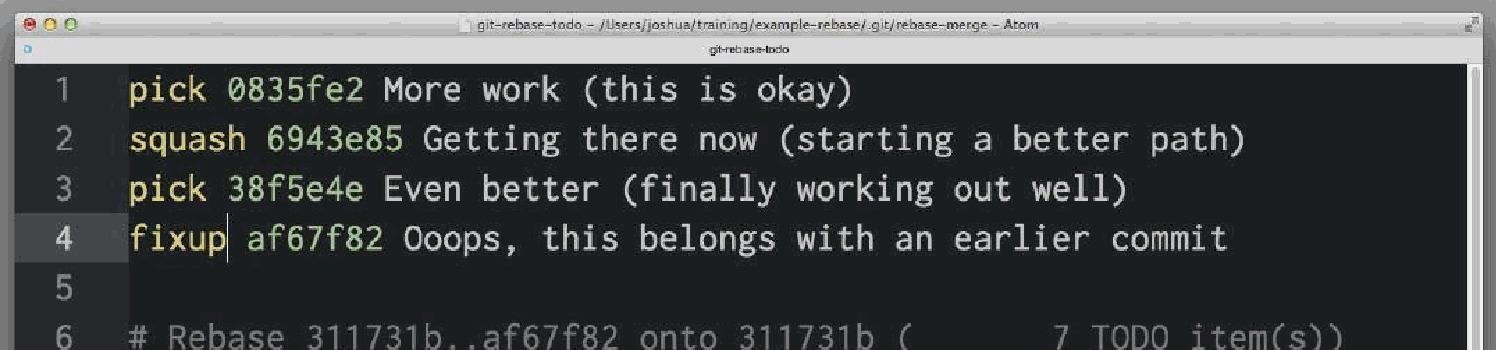
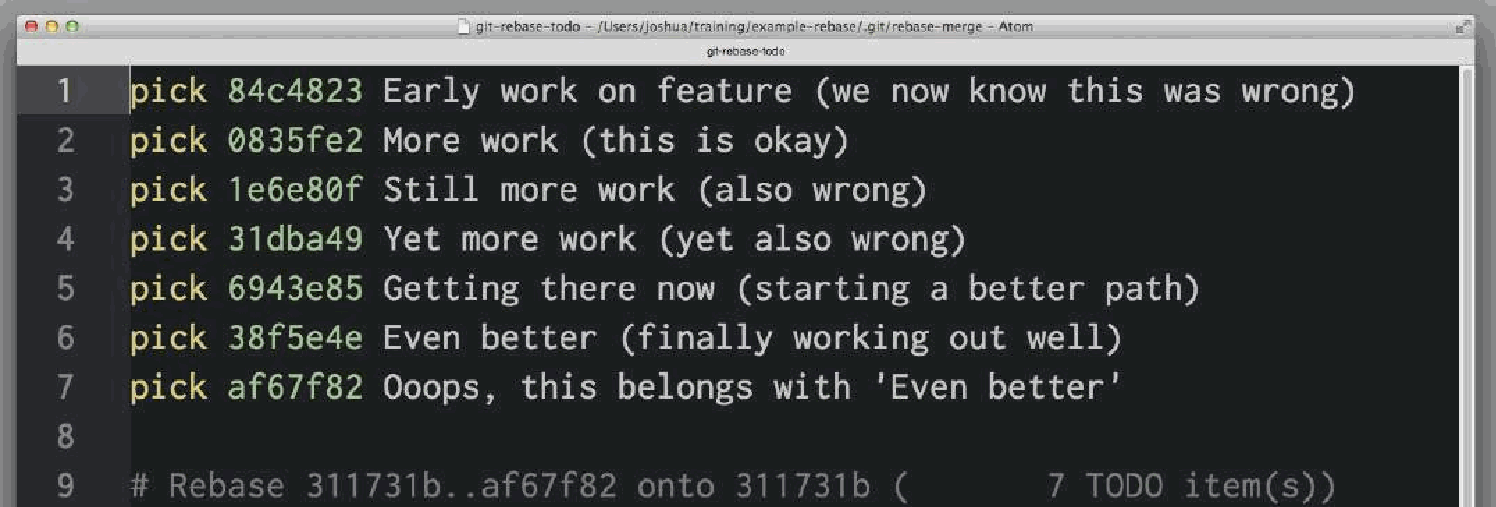
git rebase -i <earlier SHA>-i puts rebase in "interactive mode". It starts off like the rebase discussed above, but before replaying any commits, it pauses and allows you to gently modify each commit as it's replayed.rebase -i will open in your default text editor, with a list of commits being applied, like this: To drop a commit, just delete that line in your editor. If you no longer want the bad commits in your project, you can delete lines 1 and 3-4 above.If you want to combine two commits together, you can use the squash or fixup commands