Original chapter reference: Chapter 6: Git Diff. The command options and documentation recipes below are fully transcribed from Git Notes for Professionals.
Parameter Details -p, -u, --patch Generate patch Suppress diff output. Useful for commands like git show that show the patch by default, or to -s, --no-patch cancel the effect of --patch --raw Generate the diff in raw format --diff-algorithm= Choose a diff algorithm. The variants are as follows: myers, minimal, patience, histogram Output a condensed summary of extended header information such as creations, renames and --summary mode changes --name-only Show only names of changed files Show names and statuses of changed files The most common statuses are M (Modified), A --name-status (Added), and D (Deleted) Warn if changes introduce conflict markers or whitespace errors. What are considered whitespace errors is controlled by core.whitespace configuration. By default, trailing whitespaces (including --check lines that solely consist of whitespaces) and a space character that is immediately followed by a tab character inside the initial indent of the line are considered whitespace errors. Exits with non- zero status if problems are found. Not compatible with --exit-code Instead of the first handful of characters, show the full pre- and post-image blob object names on --full-index the "index" line when generating patch format output --binary In addition to --full-index, output a binary diff that can be applied with git apply -a, --text Treat all files as text. Set the color mode; i.e. use --color=always if you would like to pipe a diff to less and keep git's --color coloring
Section 6.1: Show differences in working branch
git diffThis will show the unstaged changes on the current branch from the commit before it. It will only show changes relative to the index, meaning it shows what you could add to the next commit, but haven't. To add (stage) these changes, you can use git add.
If a file is staged, but was modified after it was staged, git diff will show the differences between the current file and the staged version.
Section 6.2: Show changes between two commits
git diff 1234abc..6789def # old newE.g.: Show the changes made in the last 3 commits:
git diff @~3..@ # HEAD -3 HEADNote: the two dots (..) is optional, but adds clarity.
This will show the textual difference between the commits, regardless of where they are in the tree.
Section 6.3: Show differences for staged files
git diff --stagedThis will show the changes between the previous commit and the currently staged files.
NOTE: You can also use the following commands to accomplish the same thing:
git diff --cachedWhich is just a synonym for --staged or
git status -vWhich will trigger the verbose settings of the status command.
Section 6.4: Comparing branches
Show the changes between the tip of new and the tip of original:
git diff original new # equivalent to original..newShow all changes on new since it branched from original:
git diff original...new # equivalent to $(git merge-base original new)..newUsing only one parameter such as
git diff original
is equivalent to
git diff original..HEAD
Section 6.5: Show both staged and unstaged changes
To show all staged and unstaged changes, use:
git diff HEADNOTE: You can also use the following command:
git status -vvThe difference being that the output of the latter will actually tell you which changes are staged for commit and which are not.
Section 6.6: Show differences for a specific file or directory
git diff myfile.txtShows the changes between the previous commit of the specified file (myfile.txt) and the locally-modified version that has not yet been staged.
This also works for directories:
git diff documentationThe above shows the changes between the previous commit of all files in the specified directory (documentation/) and the locally-modified versions of these files, that have not yet been staged.
To show the difference between some version of a file in a given commit and the local HEAD version you can specify the commit you want to compare against:
git diff 27fa75e myfile.txtOr if you want to see the version between two separate commits:
git diff 27fa75e ada9b57 myfile.txtTo show the difference between the version specified by the hash ada9b57 and the latest commit on the branch my_branchname for only the relative directory called my_changed_directory/ you can do this:
git diff ada9b57 my_branchname my_changed_directory/Section 6.7: Viewing a word-diff for long lines
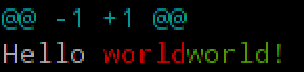
git diff [HEAD|--staged...] --word-diffRather than displaying lines changed, this will display differences within lines. For example, rather than:
-Hello world
+Hello world!
Where the whole line is marked as changed, word-diff alters the output to:
Hello [-world-]{+world!+}You can omit the markers [-, -], {+, +} by specifying --word-diff=color or --color-words. This will only use color coding to mark the difference:
Section 6.8: Show differences between current version and last version
git diff HEAD^ HEADThis will show the changes between the previous commit and the current commit.
Section 6.9: Produce a patch-compatible diff
Sometimes you just need a diff to apply using patch. The regular git --diff does not work. Try this instead:
git diff --no-prefix > some_file.patchThen somewhere else you can reverse it:
patch -p0 < some_file.patchSection 6.10: difference between two commit or branch
To view difference between two branch
git diff <branch1>..<branch2>To view difference between two branch
git diff <commitId1>..<commitId2>To view diff with current branch
git diff <branch/commitId>To view summary of changes
git diff --stat <branch/commitId>To view files that changed after a certain commit
git diff --name-only <commitId>To view files that are different than a branch
git diff --name-only <branchName>To view files that changed in a folder after a certain commit
git diff --name-only <commitId> <folder_path>Section 6.11: Using meld to see all modifications in the working directory
git difftool -t meld --dir-diffwill show the working directory changes. Alternatively,
git difftool -t meld --dir-diff [COMMIT_A] [COMMIT_B]will show the differences between 2 specific commits.
Section 6.12: Diff UTF-16 encoded text and binary plist files
You can diff UTF-16 encoded files (localization strings file os iOS and macOS are examples) by specifying how git should diff these files.
Add the following to your ~/.gitconfig file.
[diff "utf16"]
textconv = "iconv -f utf-16 -t utf-8"
iconv is a program to convert different encodings. Then edit or create a .gitattributes file in the root of the repository where you want to use it. Or just edit
~/.gitattributes.

*.strings diff=utf16
This will convert all files ending in .strings before git diffs.
You can do similar things for other files, that can be converted to text.
For binary plist files you edit .gitconfig
[diff "plist"]
textconv = plutil -convert xml1 -o -
and .gitattributes
*.plist diff=plist