Original chapter reference: Chapter 52: TortoiseGit. The command options and documentation recipes below are fully transcribed from Git Notes for Professionals.
Section 52.1: Squash commits
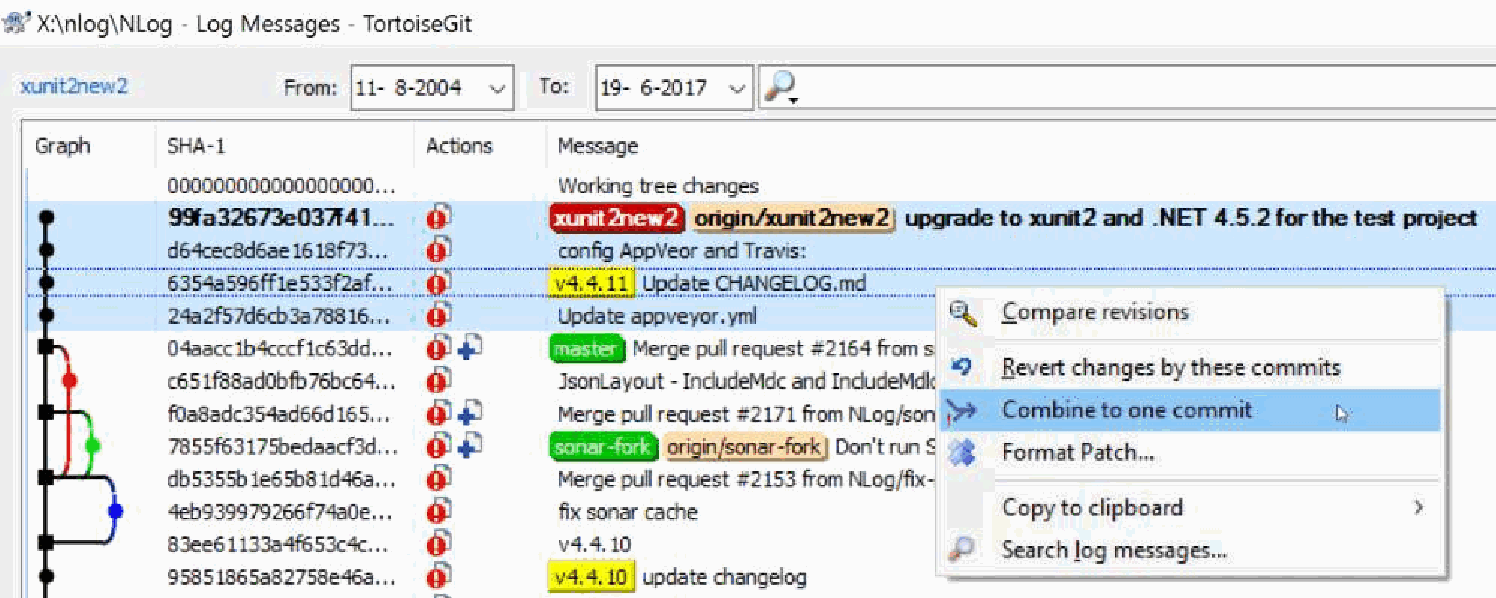
The easy way
This won't work if there are merge commits in your selection
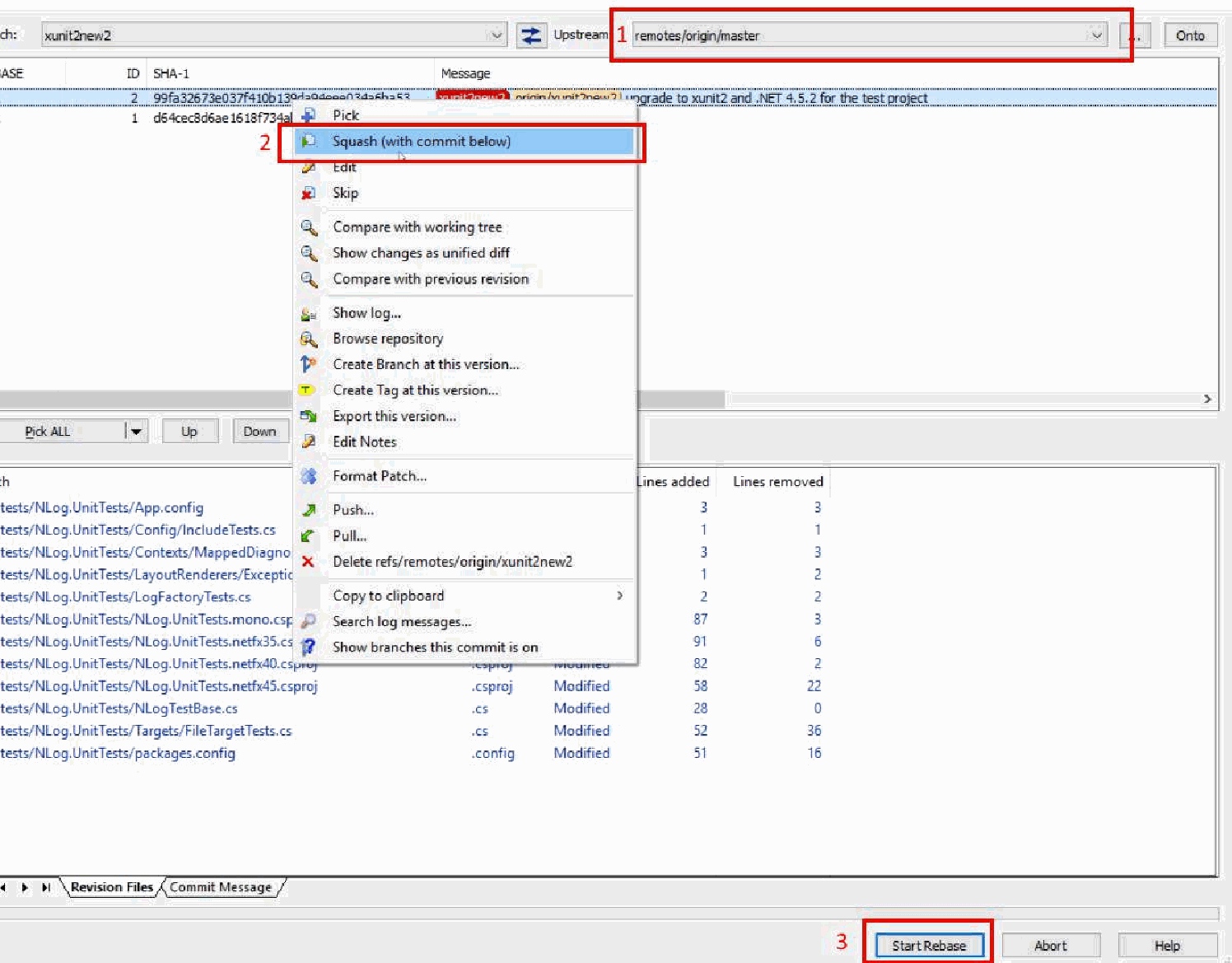
TortoiseGit: Rebase dialog with squash action (PDF page 162)TortoiseGit: Combine to one commit from log messages (PDF page 161)
The advanced way
Start the rebase dialog:
Section 52.2: Assume unchanged
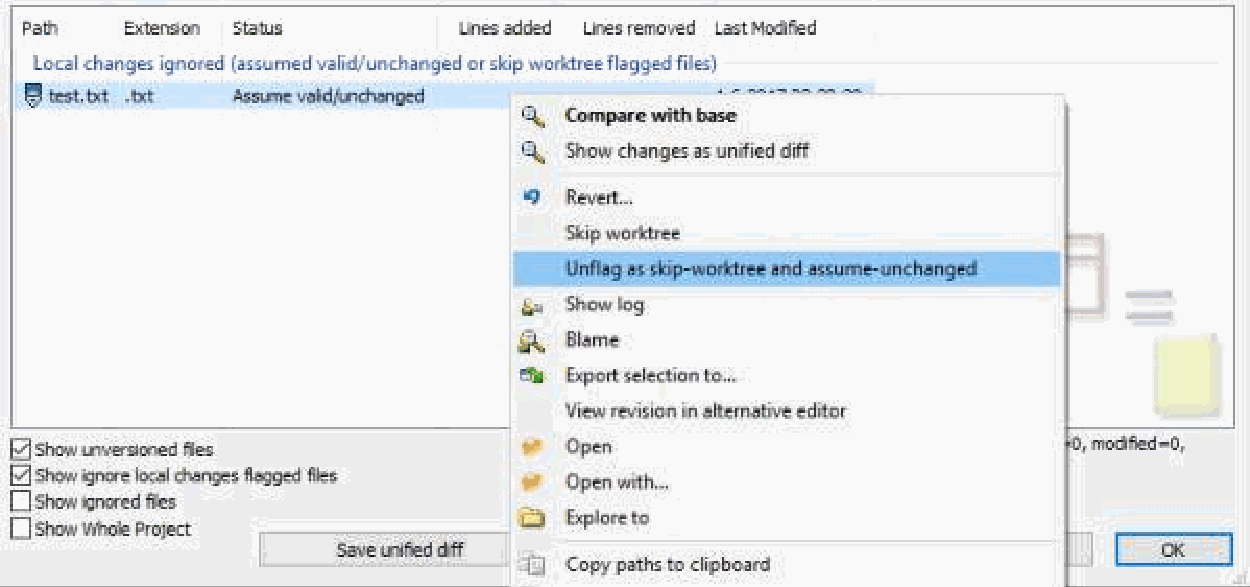
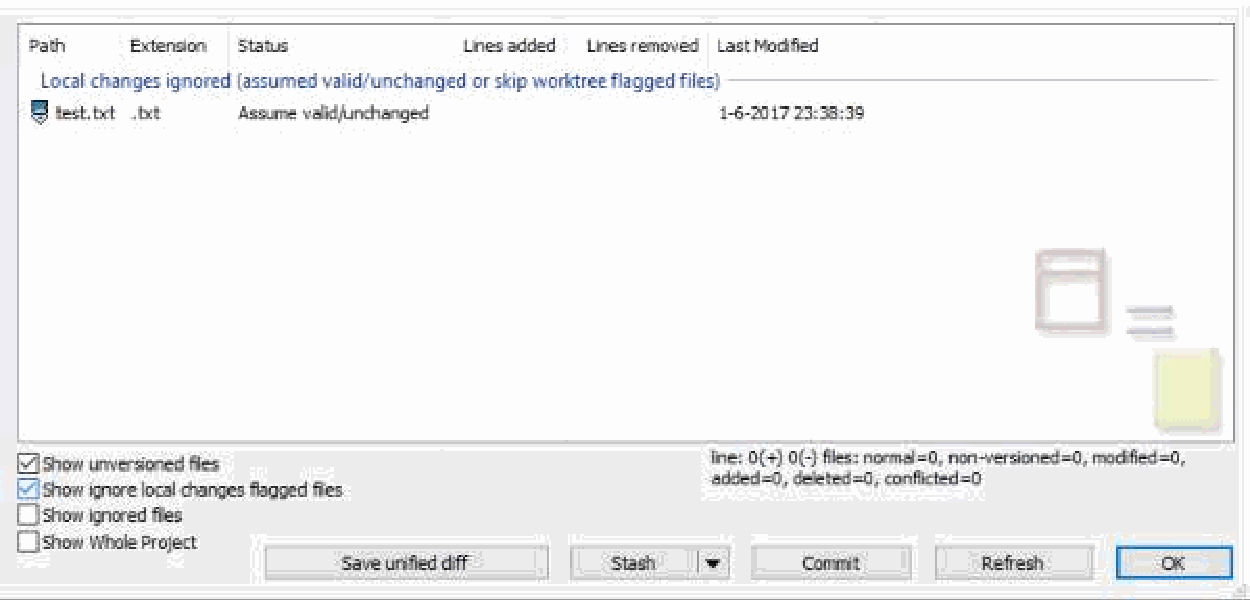
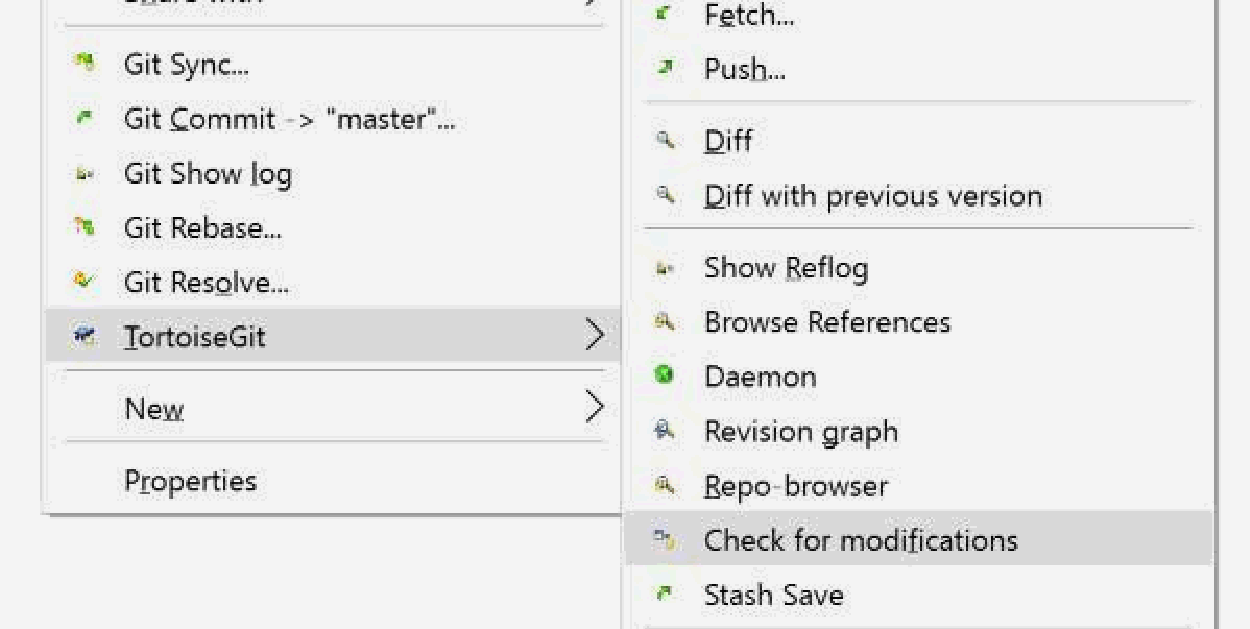
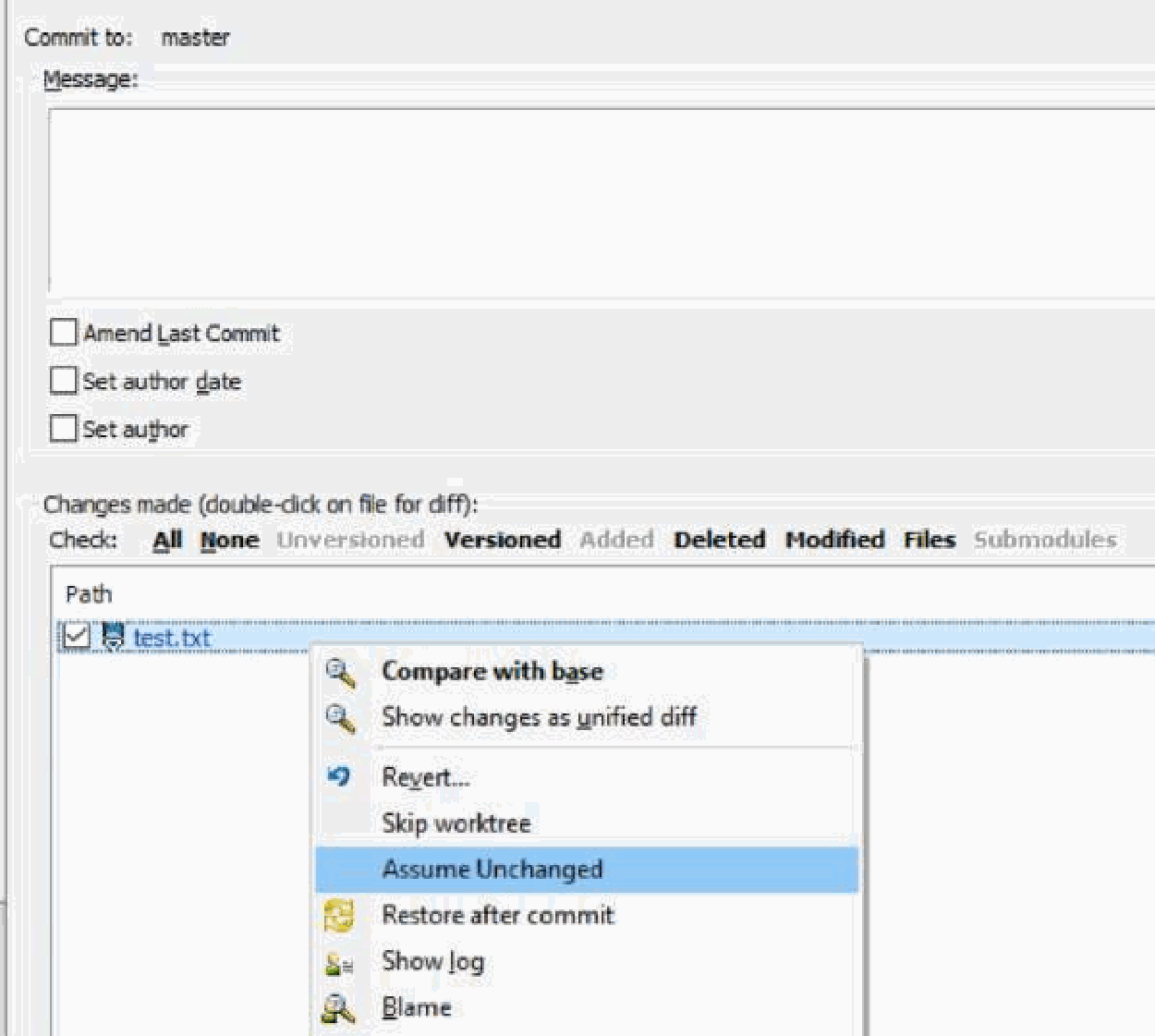
If a file is changed, but you don't like to commit it, set the file as "Assume unchanged" Revert "Assume unchanged"
Need some steps:
TortoiseGit: Unflag as skip-worktree and assume-unchanged (PDF page 164)TortoiseGit: Local changes ignored list (PDF page 164)TortoiseGit: Check for modifications to find assume unchanged files (PDF page 163)TortoiseGit: Set file as Assume Unchanged (PDF page 163)
Section 52.3: Ignoring Files and Folders
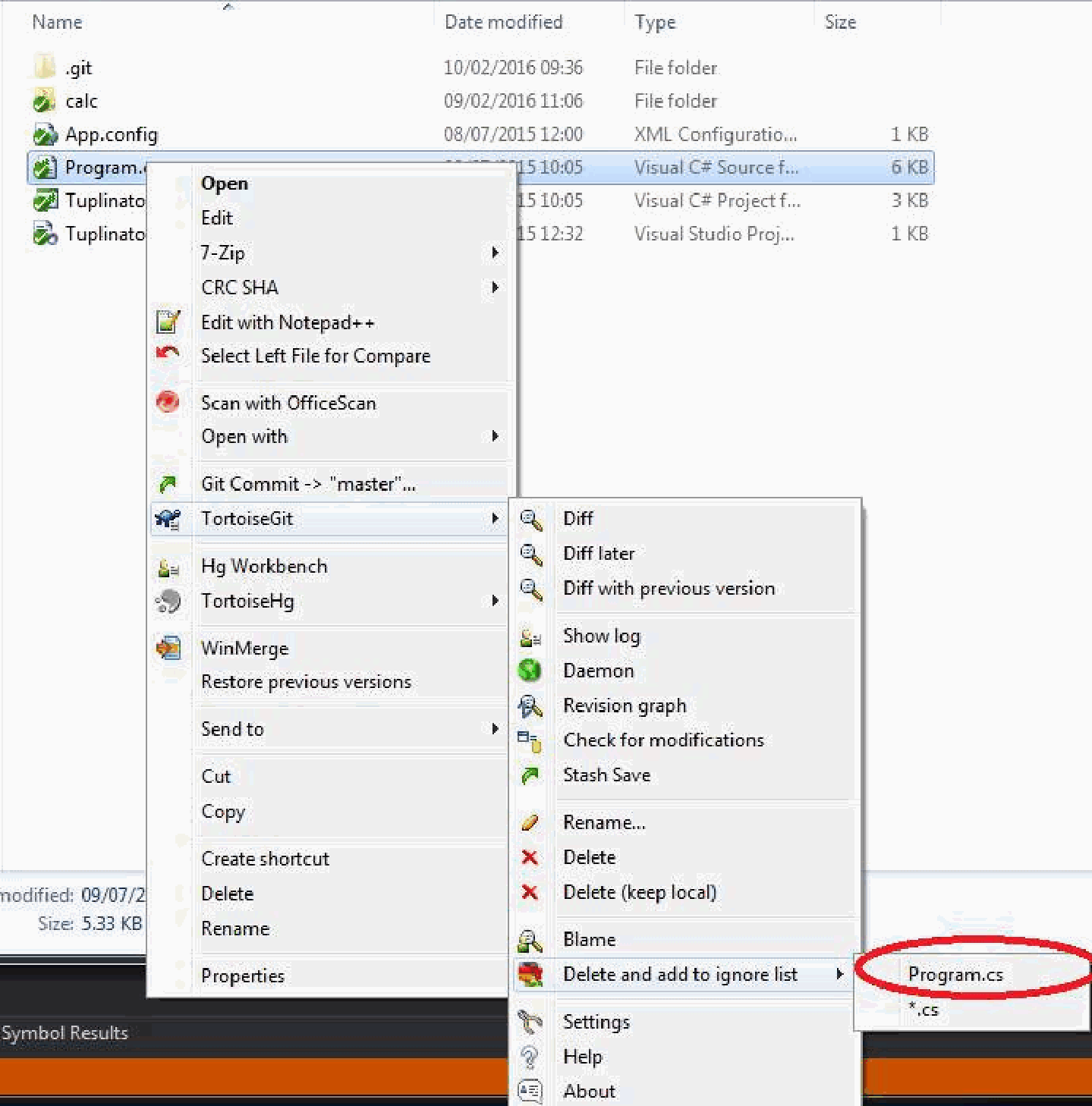
Those that are using TortioseGit UI click Right Mouse on the file (or folder) you want to ignore -> TortoiseGit -> Delete and add to ignore list, here you can choose to ignore all files of that type or this specific file -> dialog will pop out Click Ok and you should be done.
TortoiseGit: Delete and add to ignore list context menu (PDF page 165)
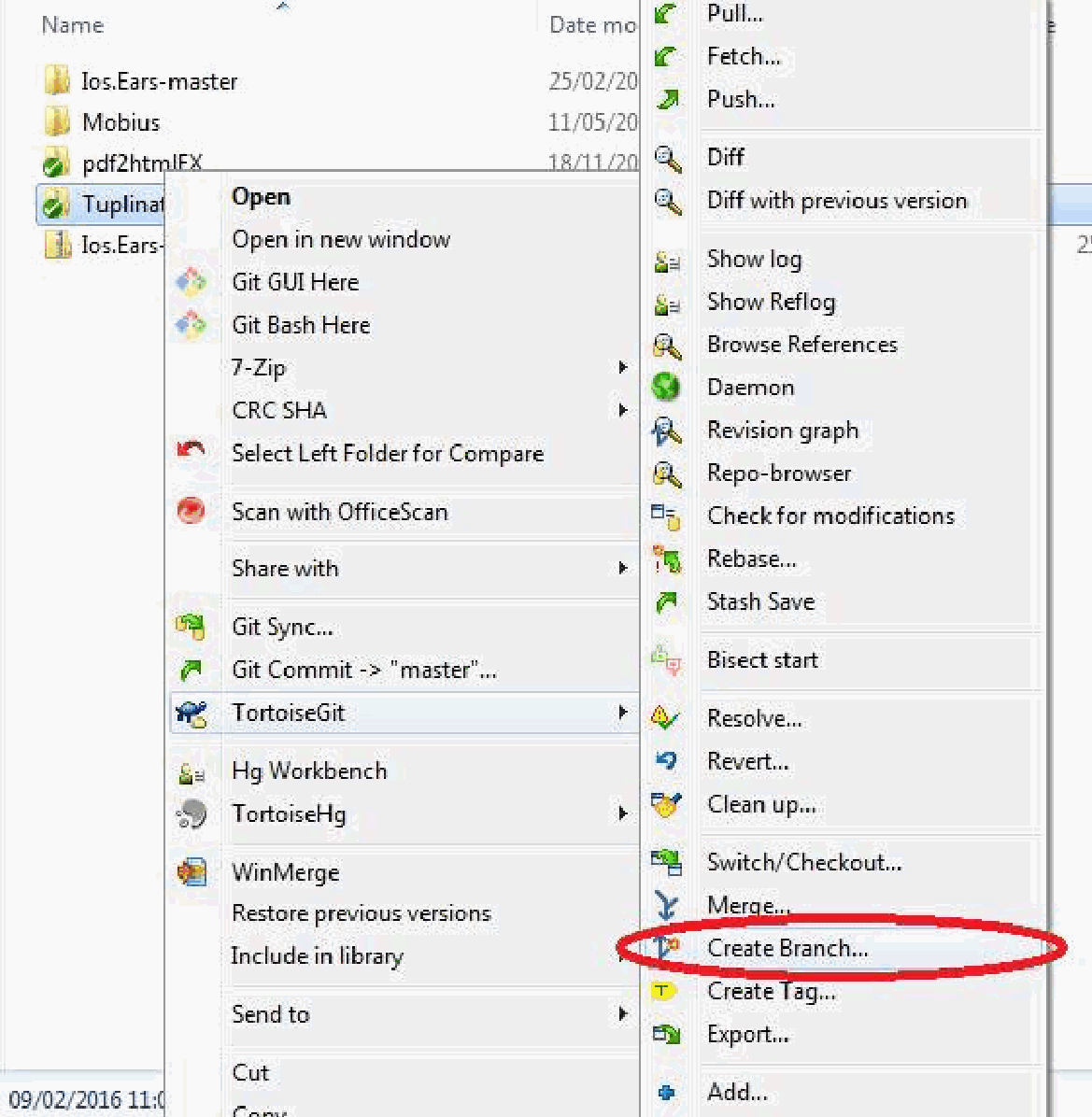
Section 52.4: Branching
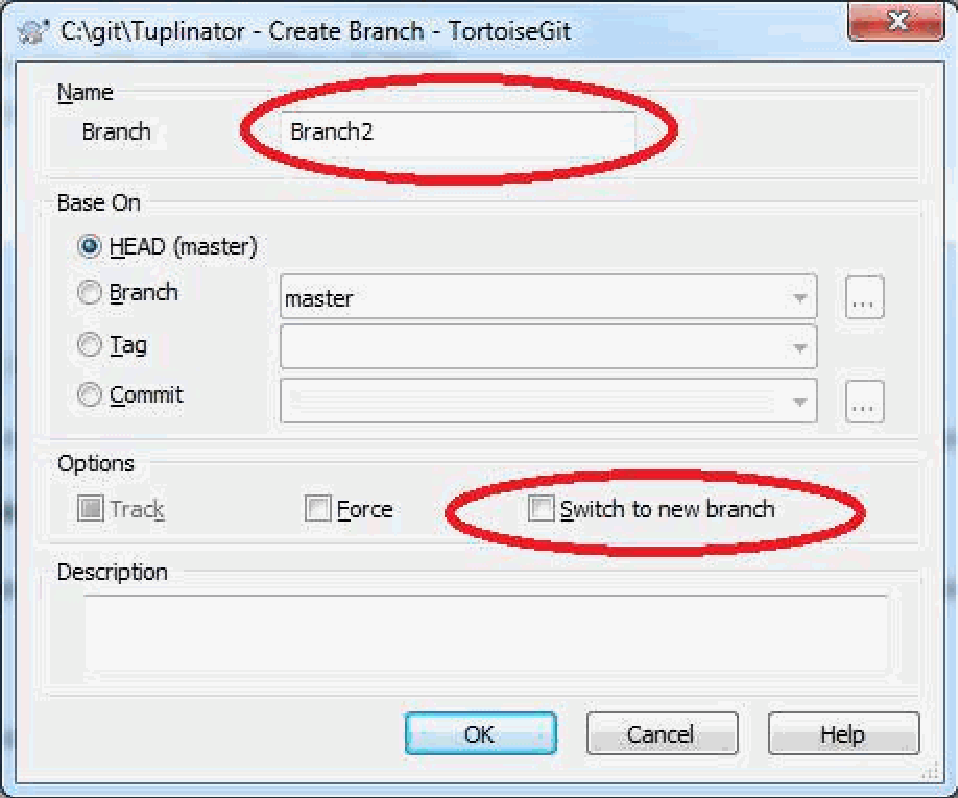
For those that are using UI to branch click Right Mouse on repository then Tortoise Git -> Create Branch... New window will open -> Give branch a name -> Tick the box Switch to new branch (Chances are you want to start working with it after branching). -> Click OK and you should be done.