Original chapter reference: Chapter 50: Git GUI Clients. The command options and documentation recipes below are fully transcribed from Git Notes for Professionals.
Section 50.1: gitk and git-gui
When you install Git, you also get its visual tools, gitk and git-gui.
gitk is a graphical history viewer. Think of it like a powerful GUI shell over git log and git grep. This is the tool to use when you’re trying to find something that happened in the past, or visualize your project’s history.
Gitk is easiest to invoke from the command-line. Just cd into a Git repository, and type:
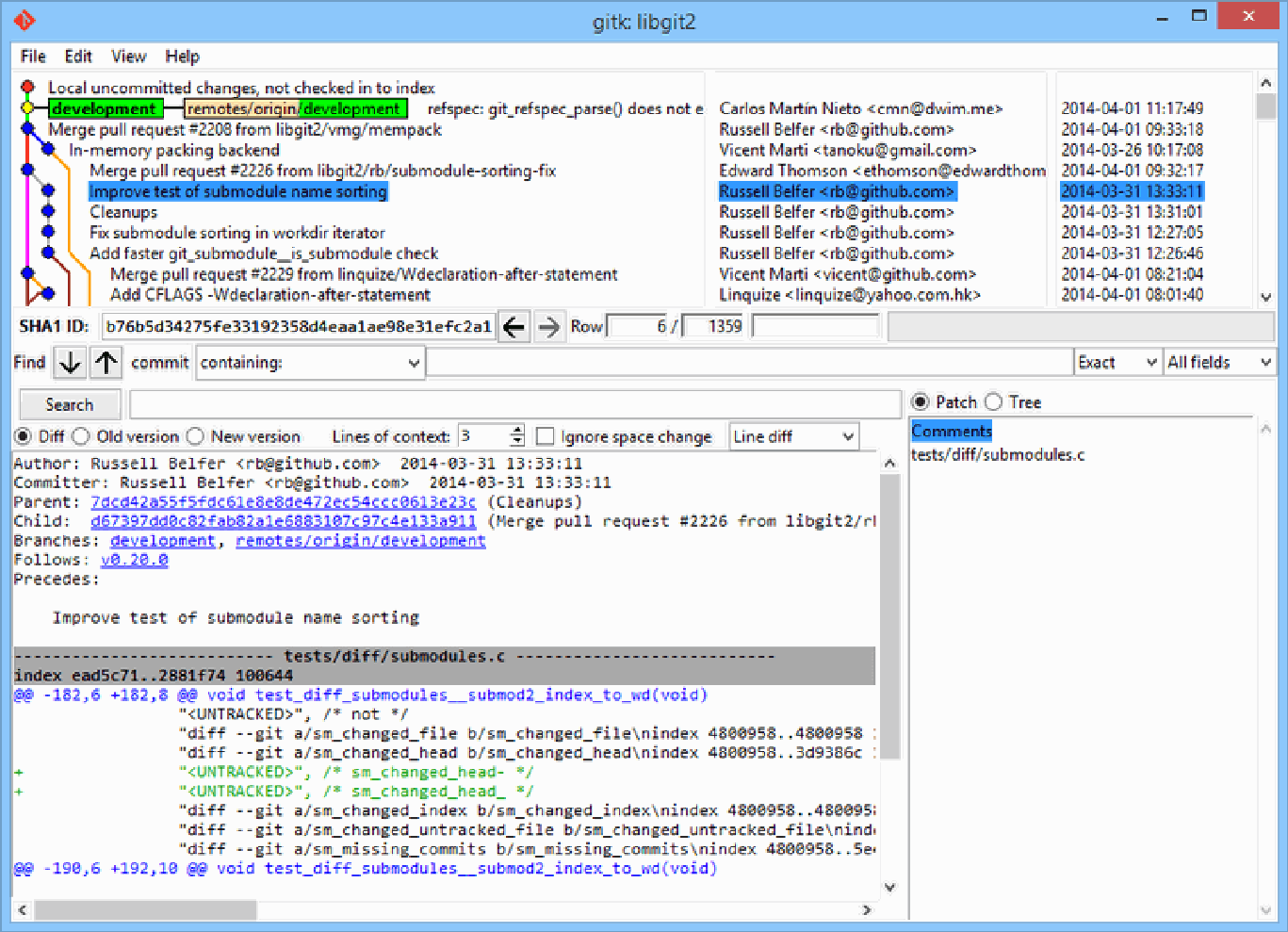
$ gitk [git log options]Gitk accepts many command-line options, most of which are passed through to the underlying git log action. Probably one of the most useful is the --all flag, which tells gitk to show commits reachable from any ref, not just HEAD. Gitk’s interface looks like this:
Figure 1-1. The gitk history viewer.
On the top is something that looks a bit like the output of git log --graph; each dot represents a commit, the lines represent parent relationships, and refs are shown as colored boxes. The yellow dot represents HEAD, and the red dot represents changes that are yet to become a commit. At the bottom is a view of the selected commit; the comments and patch on the left, and a summary view on the right. In between is a collection of controls used for searching history.
You can access many git related functions via right-click on a branch name or a commit message. For example checking out a different branch or cherry pick a commit is easily done with one click. git-gui, on the other hand, is primarily a tool for crafting commits. It, too, is easiest to invoke from the command line:
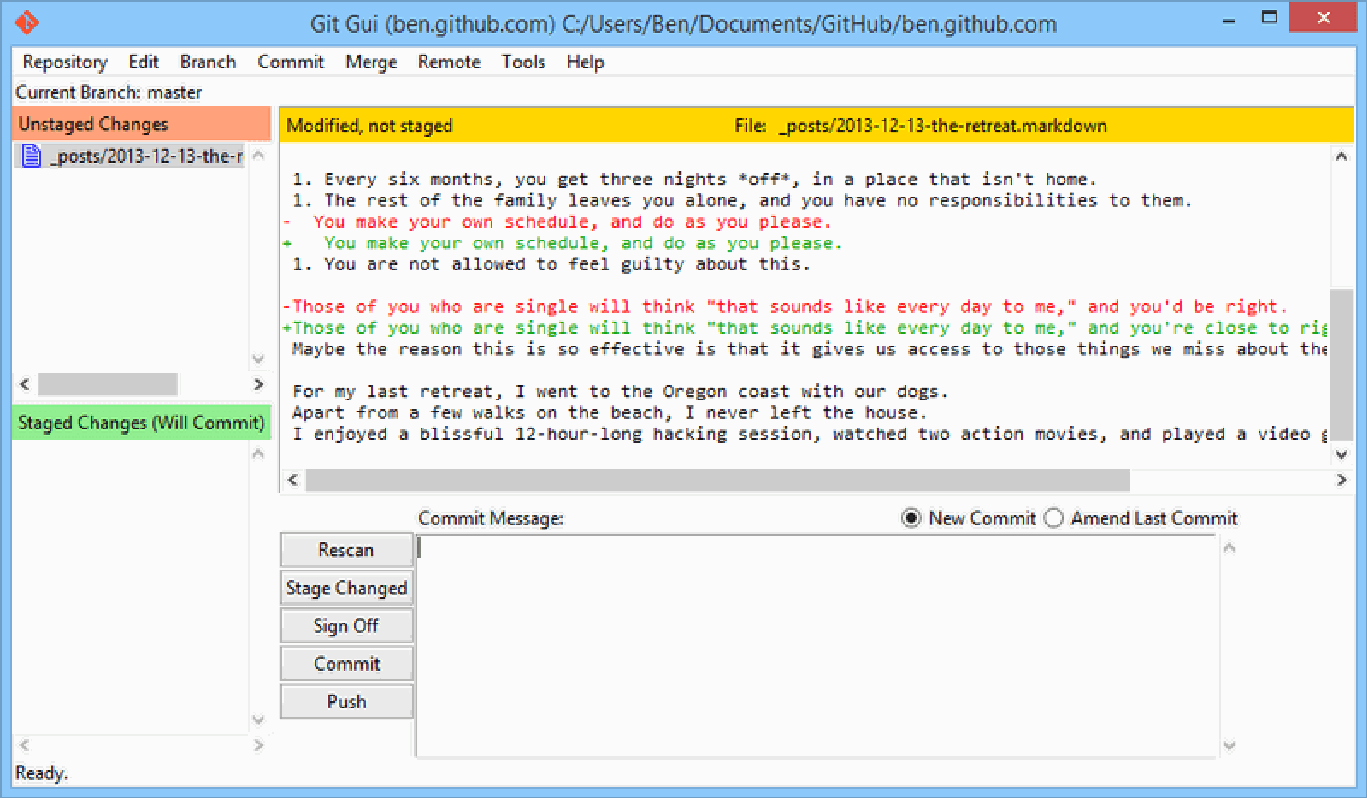
$ git guiAnd it looks something like this:
The git-gui commit tool.
Figure 1-2. The git-gui commit tool.
On the left is the index; unstaged changes are on top, staged changes on the bottom. You can move entire files between the two states by clicking on their icons, or you can select a file for viewing by clicking on its name.
At top right is the diff view, which shows the changes for the currently-selected file. You can stage individual hunks (or individual lines) by right-clicking in this area.
At the bottom right is the message and action area. Type your message into the text box and click “Commit” to do something similar to git commit. You can also choose to amend the last commit by choosing the “Amend” radio button, which will update the “Staged Changes” area with the contents of the last commit. Then you can simply stage or unstage some changes, alter the commit message, and click “Commit” again to replace the old commit with a new one.
gitk and git-gui are examples of task-oriented tools. Each of them is tailored for a specific purpose (viewing history and creating commits, respectively), and omit the features not necessary for that task.
Source: https://git-scm.com/book/en/v2/Git-in-Other-Environments-Graphical-Interfaces
Section 50.2: GitHub Desktop
Website: https://desktop.github.com Price: free Platforms: OS X and Windows Developed by: GitHub
Section 50.3: Git Kraken
Website:https://www.gitkraken.com Price: $60/years (free for For open source, education, non-profit, startups or personal use) Platforms: Linux, OS X, Windows Developed by: Axosoft
Section 50.4: SourceTree
Website: https://www.sourcetreeapp.com Price: free (account is necessary) Platforms: OS X and Windows Developer: Atlassian
Section 50.5: Git Extensions
Website: https://gitextensions.github.io Price: free Platform: Windows
Section 50.6: SmartGit
Website: http://www.syntevo.com/smartgit/ Price: Free for non-commercial use only. A perpetual license costs 99 USD Platforms: Linux, OS X, Windows Developed by: syntevo