Original chapter reference: Chapter 10: Committing. The command options and documentation recipes below are fully transcribed from Git Notes for Professionals.
Parameter Details Message to include in the commit. Specifying this parameter bypasses Git's normal --message, -m behavior of opening an editor. Specify that the changes currently staged should be added (amended) to the --amend previous commit. Be careful, this can rewrite history! Use the selected commit message without launching an editor. For example, git --no-edit commit --amend --no-edit amends a commit without changing its commit message. --all, -a Commit all changes, including changes that aren't yet staged. --date Manually set the date that will be associated with the commit. Commit only the paths specified. This will not commit what you currently have --only staged unless told to do so. --patch, -p Use the interactive patch selection interface to chose which changes to commit. --help Displays the man page for git commit -S[keyid], -S --gpg- Sign commit, GPG-sign commit, countermand commit.gpgSign configuration sign[=keyid], -S --no-gpg-sign variable -n, --no-verify This option bypasses the pre-commit and commit-msg hooks. See also Hooks
Commits with Git provide accountability by attributing authors with changes to code. Git offers multiple features for the specificity and security of commits. This topic explains and demonstrates proper practices and procedures in committing with Git.
Section 10.1: Stage and commit changes
The basics
After making changes to your source code, you should stage those changes with Git before you can commit them.
For example, if you change README.md and program.py:
git add README.md program.pyThis tells git that you want to add the files to the next commit you do.
Then, commit your changes with
git commitNote that this will open a text editor, which is often vim. If you are not familiar with vim, you might want to know that you can press i to go into insert mode, write your commit message, then press Esc and :wq to save and quit. To avoid opening the text editor, simply include the -m flag with your message
git commit -m "Commit message here"Commit messages often follow some specific formatting rules, see Good commit messages for more information.
Shortcuts
If you have changed a lot of files in the directory, rather than listing each one of them, you could use:
git add --all # equivalent to "git add -a"Or to add all changes, not including files that have been deleted, from the top-level directory and subdirectories:
git add .Or to only add files which are currently tracked ("update"):
git add -uIf desired, review the staged changes:
git status           # display a list of changed files
git diff --cached    # shows staged changes inside staged files
Finally, commit the changes:
git commit -m "Commit message here"Alternately, if you have only modified existing files or deleted files, and have not created any new ones, you can combine the actions of git add and git commit in a single command:
git commit -am "Commit message here"Note that this will stage all modified files in the same way as git add --all.
Sensitive data
You should never commit any sensitive data, such as passwords or even private keys. If this case happens and the changes are already pushed to a central server, consider any sensitive data as compromised. Otherwise, it is possible to remove such data afterwards. A fast and easy solution is the usage of the "BFG Repo-Cleaner": https://rtyley.github.io/bfg-repo-cleaner/.
The command bfg --replace-text passwords.txt my-repo.git reads passwords out of the passwords.txt file and replaces these with ***REMOVED***. This operation considers all previous commits of the entire repository.
Section 10.2: Good commit messages
It is important for someone traversing through the git log to easily understand what each commit was all about. Good commit messages usually include a number of a task or an issue in a tracker and a concise description of what has been done and why, and sometimes also how it has been done.
Better messages may look like:
TASK-123: Implement login through OAuth
TASK-124: Add auto minification of JS/CSS files
TASK-125: Fix minifier error when name > 200 chars
Whereas the following messages would not be quite as useful:
fix                         // What has been fixed?
just a bit of a change      // What has changed?
TASK-371                    // No description at all, reader will need to look at the tracker
themselves for an explanation
Implemented IFoo in IBar    // Why it was needed?
A way to test if a commit message is written in the correct mood is to replace the blank with the message and see if it makes sense:
If I add this commit, I will ___ to my repository.
The seven rules of a great git commit message
1. Separate the subject line from body with a blank line
2. Limit the subject line to 50 characters
3. Capitalize the subject line
4. Do not end the subject line with a period
5. Use the imperative mood in the subject line
6. Manually wrap each line of the body at 72 characters
7. Use the body to explain what and why instead of how
7 rules from Chris Beam's blog.
Section 10.3: Amending a commit
If your latest commit is not published yet (not pushed to an upstream repository) then you can amend your commit.
git commit --amendThis will put the currently staged changes onto the previous commit.
Note: This can also be used to edit an incorrect commit message. It will bring up the default editor (usually vi / vim / emacs) and allow you to change the prior message.
To specify the commit message inline:
git commit --amend -m "New commit message"Or to use the previous commit message without changing it:
git commit --amend --no-editAmending updates the commit date but leaves the author date untouched. You can tell git to refresh the information.
git commit --amend --reset-authorYou can also change the author of the commit with:
git commit --amend --author "New Author <email@address.com>"Note: Be aware that amending the most recent commit replaces it entirely and the previous commit is removed from the branch's history. This should be kept in mind when working with public repositories and on branches with other collaborators. This means that if the earlier commit had already been pushed, after amending it you will have to push --force.
Section 10.4: Committing without opening an editor
Git will usually open an editor (like vim or emacs) when you run git commit. Pass the -m option to specify a message from the command line:
git commit -m "Commit message here"Your commit message can go over multiple lines:
git commit -m "Commit 'subject line' message here

More detailed description follows here (after a blank line)."
Alternatively, you can pass in multiple -m arguments:
git commit -m "Commit summary" -m "More detailed description follows here"See How to Write a Git Commit Message.
Udacity Git Commit Message Style Guide
Section 10.5: Committing changes directly
Usually, you have to use git add or git rm to add changes to the index before you can git commit them. Pass the -a or --all option to automatically add every change (to tracked files) to the index, including removals:
git commit -aIf you would like to also add a commit message you would do:
git commit -a -m "your commit message goes here"Also, you can join two flags:
git commit -am "your commit message goes here"You don't necessarily need to commit all files at once. Omit the -a or --all flag and specify which file you want to commit directly:
git commit path/to/a/file -m "your commit message goes here"For directly committing more than one specific file, you can specify one or multiple files, directories and patterns as well:
git commit path/to/a/file path/to/a/folder/* path/to/b/file -m "your commit message goes here"Section 10.6: Selecting which lines should be staged for committing
Suppose you have many changes in one or more files but from each file you only want to commit some of the changes, you can select the desired changes using:
git add -por
git add -p [file]Each of your changes will be displayed individually, and for each change you will be prompted to choose one of he following options:
y - Yes, add this hunk

n - No, don’t add this hunk

d - No, don’t add this hunk, or any other remaining hunks for this file.
Useful if you’ve already added what you want to, and want to skip over the rest.
s - Split the hunk into smaller hunks, if possible
e - Manually edit the hunk.  This is probably the most powerful option.
It will open the hunk in a text editor and you can edit it as needed.
This will stage the parts of the files you choose. Then you can commit all the staged changes like this:
git commit -m 'Commit Message'The changes that were not staged or committed will still appear in your working files, and can be committed later if required. Or if the remaining changes are unwanted, they can be discarded with:
git reset --hardApart from breaking up a big change into smaller commits, this approach is also useful for reviewing what you are about to commit. By individually confirming each change, you have an opportunity to check what you wrote, and can avoid accidentally staging unwanted code such as println/logging statements.
Section 10.7: Creating an empty commit
Generally speaking, empty commits (or commits with state that is identical to the parent) is an error.
However, when testing build hooks, CI systems, and other systems that trigger off a commit, it's handy to be able to easily create commits without having to edit/touch a dummy file.
The --allow-empty commit will bypass the check.
git commit -m "This is a blank commit" --allow-emptySection 10.8: Committing on behalf of someone else
If someone else wrote the code you are committing, you can give them credit with the --author option:
git commit -m "msg" --author "John Smith <johnsmith@example.com>"You can also provide a pattern, which Git will use to search for previous authors:
git commit -m "msg" --author "John"In this case, the author information from the most recent commit with an author containing "John" will be used.
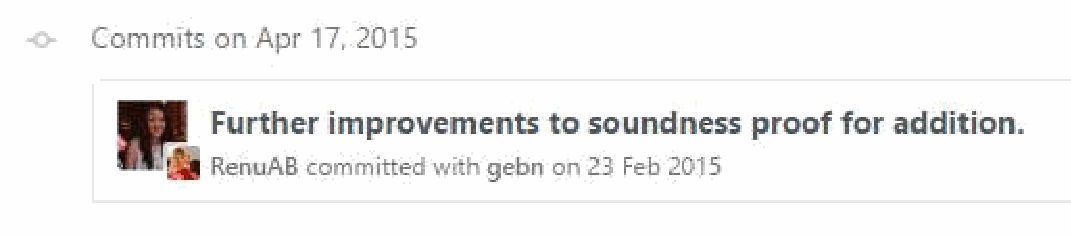
On GitHub, commits made in either of the above ways will show a large author's thumbnail, with the committer's smaller and in front:
Section 10.9: GPG signing commits
1. Determine your key ID
      gpg --list-secret-keys --keyid-format LONG

      /Users/davidcondrey/.gnupg/secring.gpg
      --------------------------------------
      sec   2048R/YOUR-16-DIGIT-KEY-ID YYYY-MM-DD [expires: YYYY-MM-DD]
Your ID is a alphanumeric 16-digit code following the first forward-slash.
2. Define your key ID in your git config
git config --global user.signingkey YOUR-16-DIGIT-KEY-ID3. As of version 1.7.9, git commit accepts the -S option to attach a signature to your commits. Using this option will prompt for your GPG passphrase and will add your signature to the commit log.
git commit -S -m "Your commit message"Section 10.10: Commiting changes in specific files
You can commit changes made to specific files and skip staging them using git add:
git commit file1.c file2.hOr you can first stage the files:
git add file1.c file2.hand commit them later:
git commitSection 10.11: Committing at a specific date
git commit -m 'Fix UI bug' --date 2016-07-01The --date parameter sets the author date. This date will appear in the standard output of git log, for example. To force the commit date too:
GIT_COMMITTER_DATE=2016-07-01 git commit -m 'Fix UI bug' --date 2016-07-01The date parameter accepts the flexible formats as supported by GNU date, for example:
git commit -m 'Fix UI bug' --date yesterday
git commit -m 'Fix UI bug' --date '3 days ago'
git commit -m 'Fix UI bug' --date '3 hours ago'
When the date doesn't specify time, the current time will be used and only the date will be overridden.
Section 10.12: Amending the time of a commit
You cam amend the time of a commit using
git commit --amend --date="Thu Jul 28 11:30 2016 -0400"or even
git commit --amend --date="now"Section 10.13: Amending the author of a commit
If you make a commit as the wrong author, you can change it, and then amend
git config user.name "Full Name"
git config user.email "email@example.com"

git commit --amend --reset-author